ip
Mintty User Guide
Mintty is a desktop app for managing tasks, optimized for use via a Command Line Interface (CLI) while still having the benefits of a Graphical User Interface (GUI). If you can type fast, Mintty can get your task management done faster than traditional GUI apps. Whether you are tracking assignments or scheduling personal events, Mintty helps you stay on top of your schedule.
Table of Contents
Quick Start
- Ensure you have Java
17or above installed in your Computer. - Download the latest
mintty.jarfrom here. - Copy the file to the folder you want to use as the home folder for your Mintty.
- Use
java -jar mintty.jarto run the program. The GUI similar to the screenshot below should appear in a few seconds. - Type the command in the command box and press Enter to execute it. e.g. typing
listand pressing Enter will display all your current tasks.
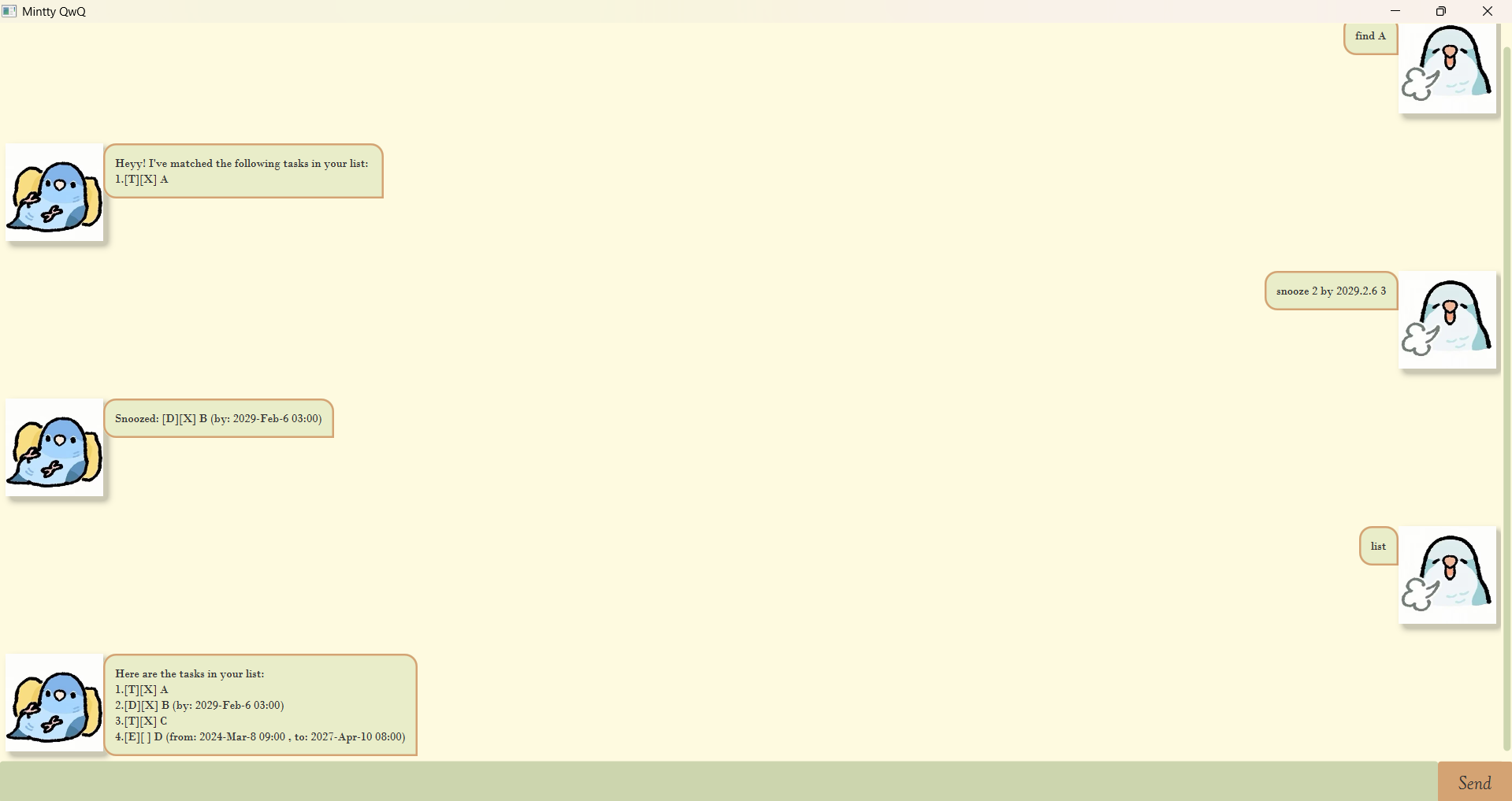
A screenshot of Mintty’s UI
Features
Notes about the command format:
- Words in
UPPER_CASEare the parameters to be supplied by the user.- Extraneous parameters for commands that do not take in parameters (such as
list,bye) will be ignored.
1. Todo
Adds a basic task without any date or time constraints to the list.
Format:
todo DESCRIPTIONtd DESCRIPTION
Example:
todo Take showertd Take shower
Expected outcome:
Okie!! I've added this to the task list:
2.[T][ ] Take shower
Now you have 2 tasks in total.
2. Deadline
Adds a task that needs to be done before a specific date/time.
Format:
deadline DESCRIPTION /by DATETIMEddl DESCRIPTION /by DATETIME
Example:
deadline CS2109S midterm /by 2026.3.2 6pmddl CS2109S midterm /by 2026.3.2 6pm
Expected outcome:
Okie!! I've added this to the task list:
3.[D][ ] CS2109S midterm (by: 2026-Mar-2 18:30)
Now you have 3 tasks in total.
3. Event
Adds a task that starts at a specific time and ends at a specific time.
Format:
event DESCRIPTION /from START_DATETIME /to END_DATETIMEe DESCRIPTION /from START_DATETIME /to END_DATETIME
Example:
event prepare for FFC /from 2025.12.3 9pm /to 2026.8.5 11pme prepare for FFC /from 2025.12.3 9pm /to 2026.8.5 11pm
Expected outcome:
Okie!! I've added this to the task list:
4.[E][ ] prepare for FFC (from: 2025-Dec-3 21:00, to: 2026-Aug-5 23:00)
Now you have 4 tasks in total.
4. List
Shows a list of all tasks currently stored in Mintty.
Format: list or l
Expected outcome:
Here are the tasks in your list:
1.[T][X] take shower
2.[D][ ] CS2109S midterm (by: 2026-Mar-2 18:30)
5. Mark
Marks the specified task from the list as completed.
Format: mark INDEX or m INDEX
INDEXrefers to the index number shown in the displayed task list.- The index must be a positive integer (e.g., 1, 2, 3…).
Example:
mark 2m 2
Expected outcome:
Niceee! I've marked this task as done:
[D][X] CS2109S midterm (by: 2026-Mar-2 18:30)
6. Unmark
Reverts a completed task back to an uncompleted state.
Format: unmark INDEX or u INDEX
Example: unmark 2 or u 2
Expected outcome:
Okie, I've marked this task as not done yet:
[D][ ] CS2109S midterm (by: 2026-Mar-2 18:30)
7. Find
Finds tasks whose description matches the given keyword(s).
Format:
find KEYWORDf KEYWORD
Example:
find CS2109Sf CS2109S
Expected outcome:
Heyyy! I've matched the following tasks in your list:
2.[D][ ] CS2109S midterm (by: 2026-Mar-2 18:30)
8. Delete
Deletes the specified task from the list.
Format:
delete INDEXdel INDEX
Example:
delete 2del 2
Expected outcome:
Okie!! I've removed this from the task list:
2.[D][ ] CS2109S midterm (by: 2026-Mar-2 18:30)
Now you have 1 tasks in total.
9. Snooze
Postpones or reschedules a Deadline or Event task to a new date/time.
Note: This feature does not support
Todotasks, as they do not have time constraints.
Format:
- For a Deadline:
snooze INDEX by NEW_DATETIME - For an Event:
snooze INDEX from NEW_START_DATETIME to NEW_END_DATETIMEsnooze INDEX to NEW_END_DATETIMEsnooze INDEX from NEW_START_DATETIME
Example: snooze 2 to 2026.3.3 6pm
Expected outcome:
Snoozed: [E][ ] Event (from: XXXX, to: 2026-Mar-3 18:00)
10. Bye
Exits the program and saves your tasks automatically.
Format: bye
Expected outcome:
Nice to talk to you^^
See you!
Command Summary
| Action | Format | Example |
|---|---|---|
| Todo | todo DESCRIPTION td DESCRPTION |
todo Take shower |
| Deadline | deadline DESCRIPTION /by DATETIME ddl DESCRIPTION /by DATETIME |
deadline CS2109S midterm /by 2026.3.2 6pm |
| Event | event DESCRIPTION /from START_DATETIME /to END_DATETIME e DESCRIPTION /from START_DATETIME /to END_DATETIME |
event prepare for FFC /from 2025.12.3 9pm /to 2026.8.5 11pm |
| List | list l |
|
| Mark | mark INDEX m INDEX |
mark 2 |
| Unmark | unmark INDEX u INDEX |
unmark 2 |
| Find | find KEYWORD f KEYWORD |
find CS2109S |
| Delete | delete INDEX del INDEX |
delete 2 |
| Snooze | Deadline: snooze INDEX by NEW_DATETIME Event: snooze INDEX from NEW_START_DATETIME to NEW_END_DATETIME |
snooze 2 to 2026-Mar-3 6pm |
| Bye | bye exit quit |
Contributing
Hongshan,
for CS2103T AY25/26 sem 2 iP (individual project).